How to use Kistorium
Every part, step by step. Pick what you need.
Before you start
To record, you need a Windows PC. To sign in, a Google or Microsoft account.
Get the recorder
The Windows app that records your screen.
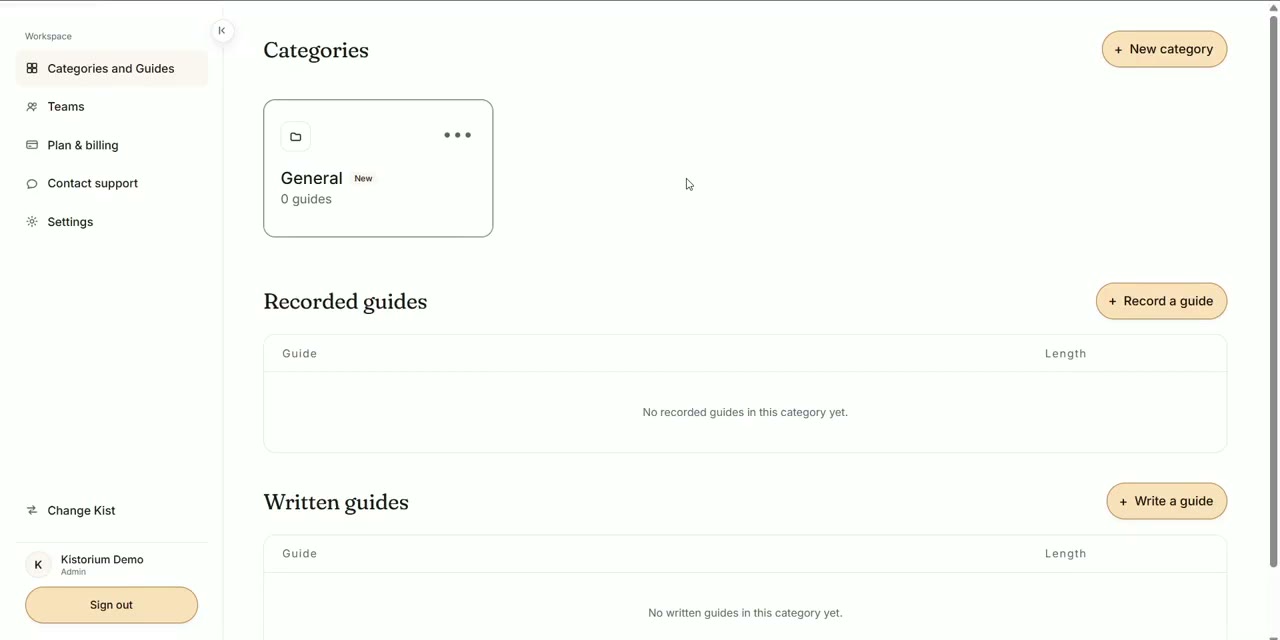
- Click Record a guide.
- Name your guide and pick a Category.
- Click Get it from Microsoft Store, then Install. No admin password needed.
Record a task
Up to three minutes. No sound is recorded.
- Click Open the Kistorium recorder.
- Choose the screen to record.
- Click I am ready. Recording starts after a five-second countdown.
- Do the task, then click Stop Recording.
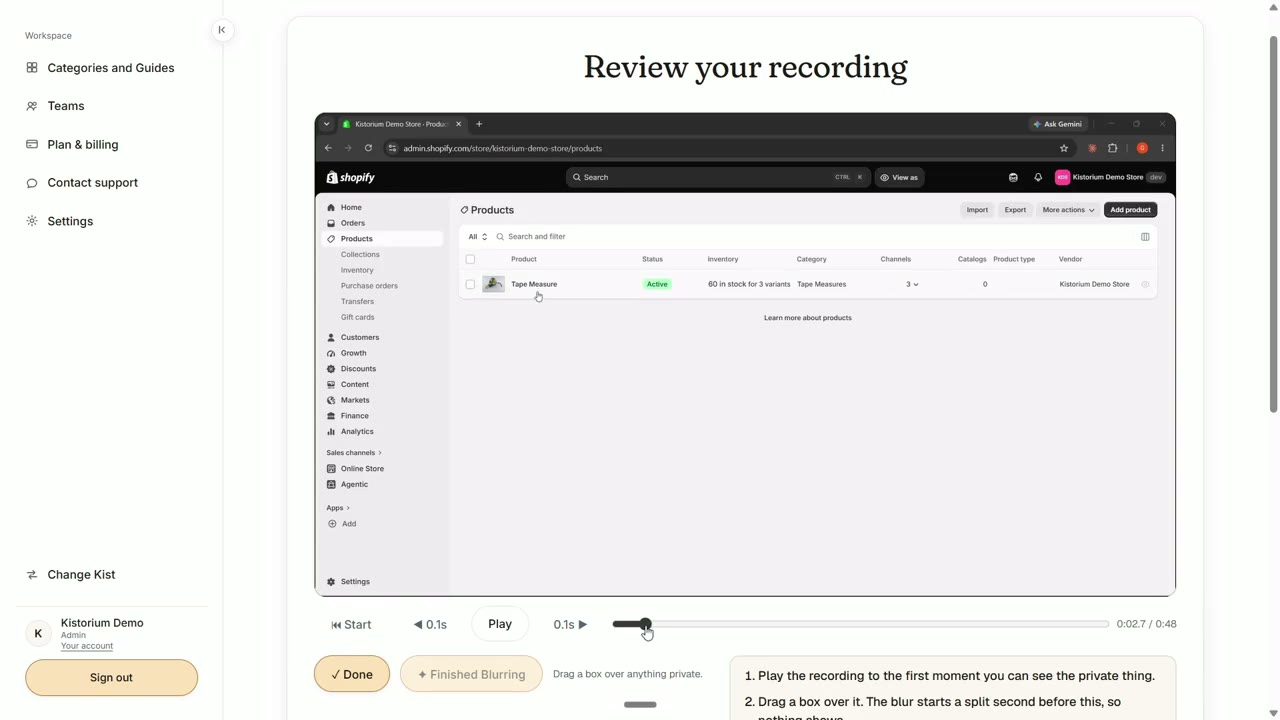
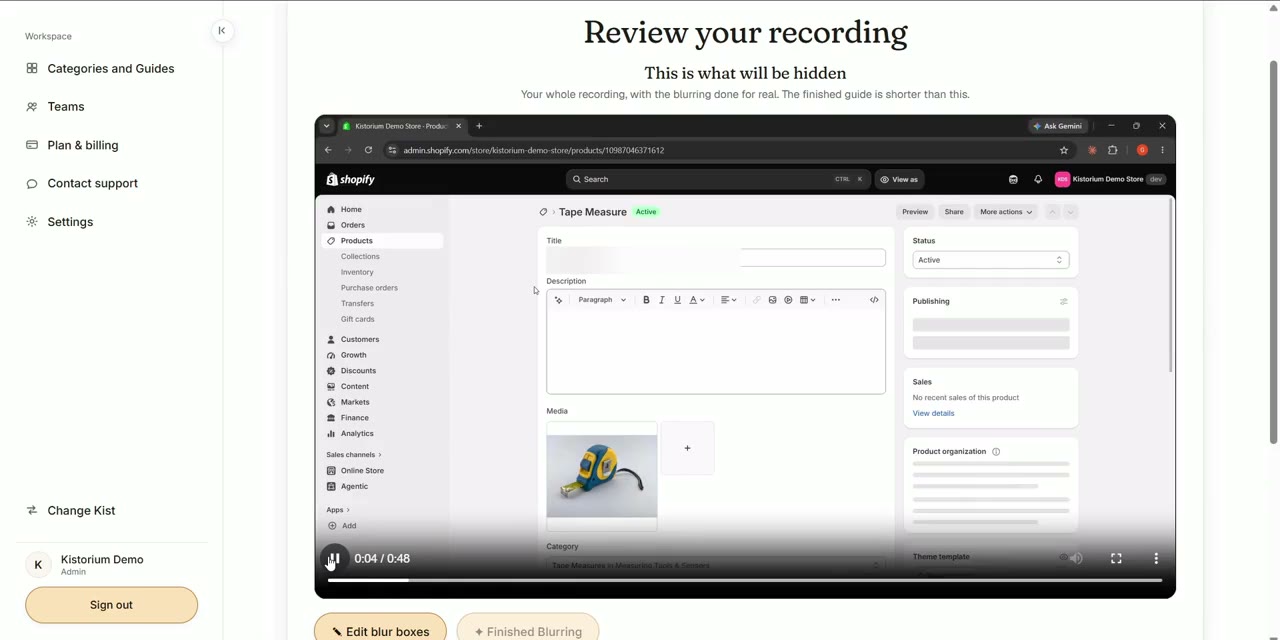
Blur anything private
Do this before you build the guide.
- Click Add Blur Box and drag a box over it.
- If it leaves the screen, set Ends here.
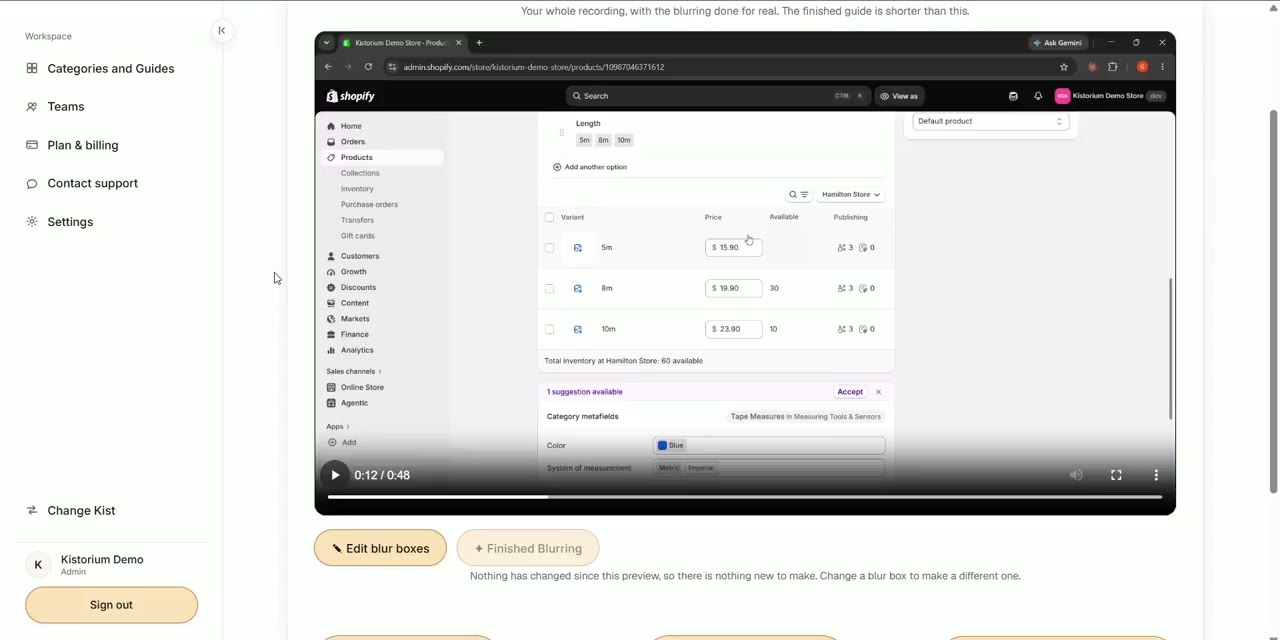
- Click Finished Blurring and check the preview. Free, about five to seven minutes.
Build your guide
One recording becomes a video and a written guide.
- Click Process with AI. This uses one video guide from your balance.
- Most are ready in about ten minutes. You can leave the page.
Your finished guide
A video and a written guide with pictures, ready to use.
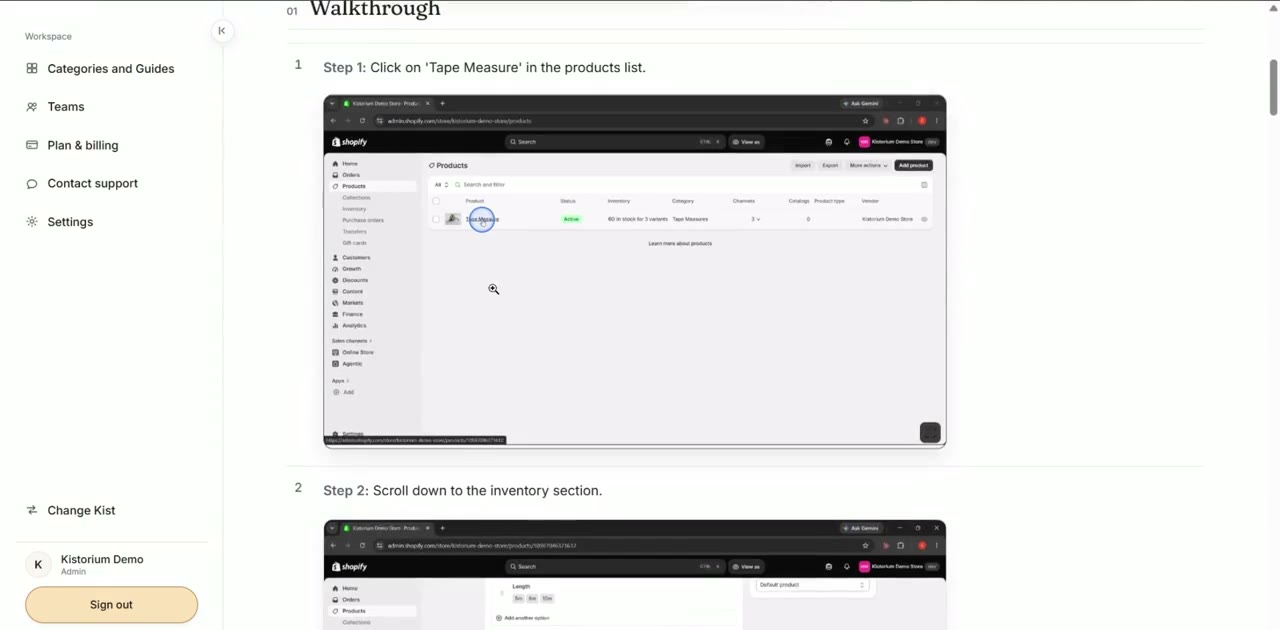
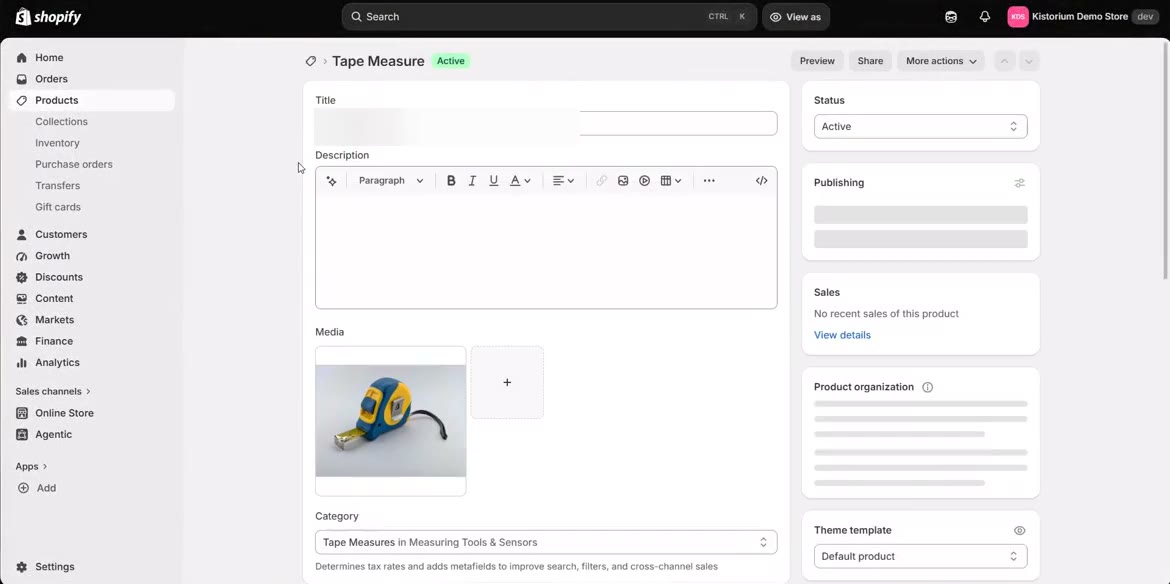
- Watch the video, or read the steps and pictures under it.
- Click Export PDF for a printable copy.
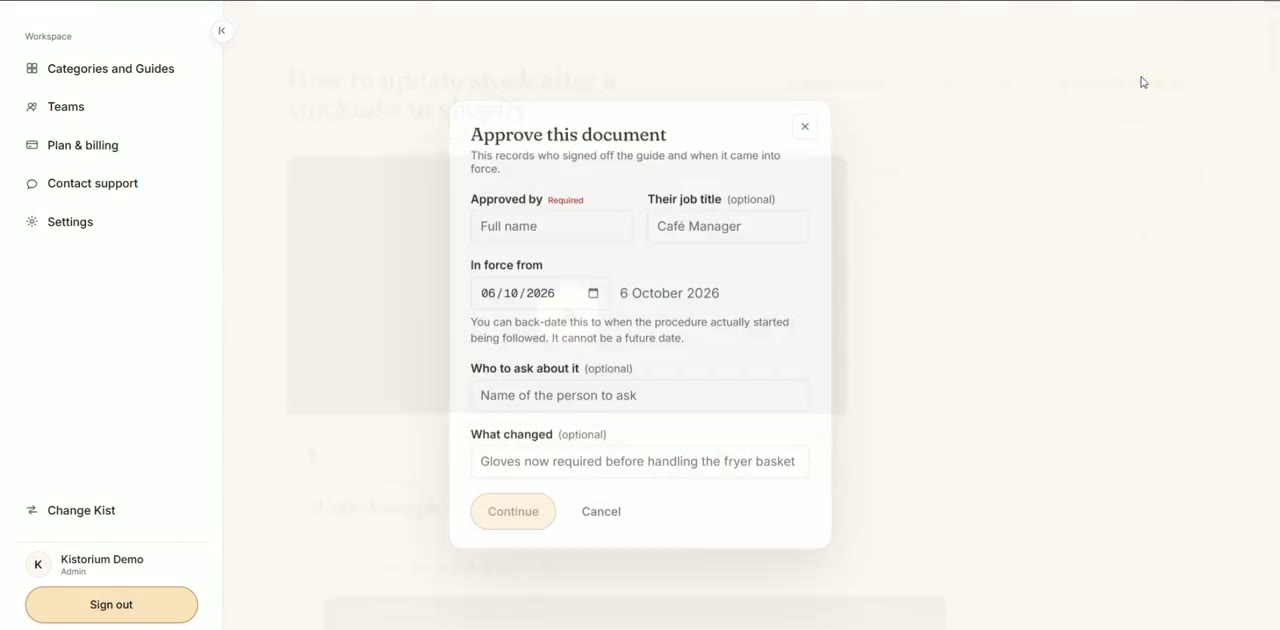
- Admins can also Share guide, Approve this document and Download video.
Edit your guide
Change the written guide after it is built.
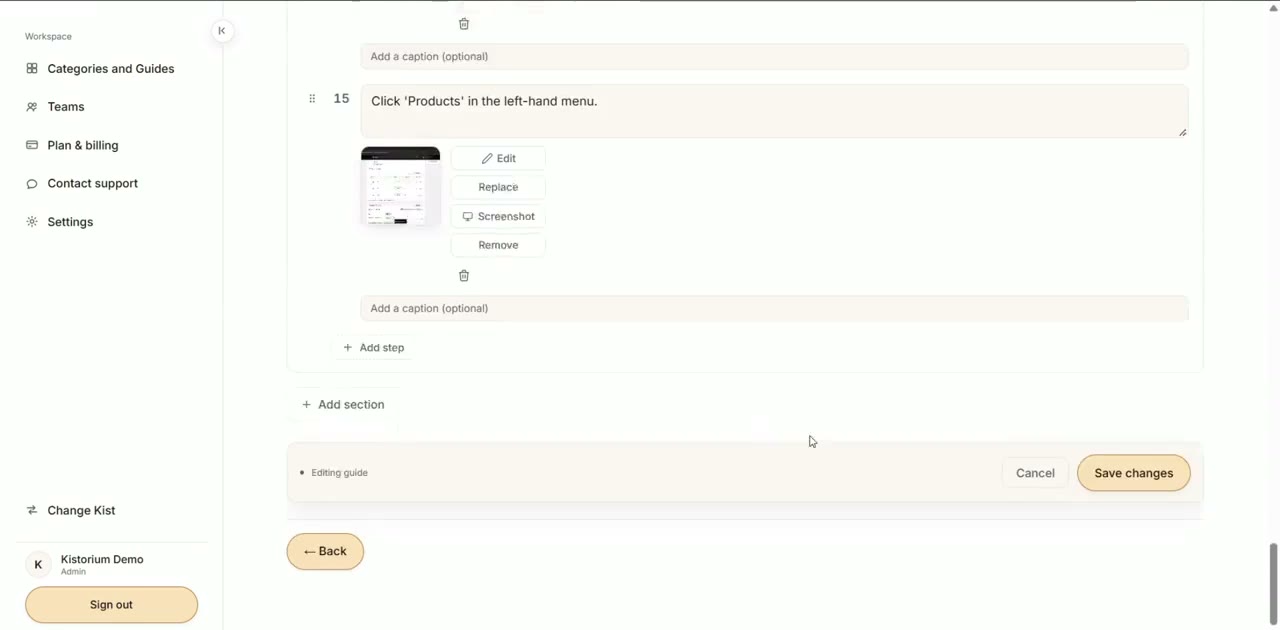
- Click Edit guide.
- Rewrite, add or delete steps. Replace any screenshot.
- To blur part of a screenshot, click Edit on the image, then Blur.
- Click Save changes.
- An approved guide cannot be edited. To change it, make a new guide.
Share a guide
Anyone with the link can open it. No sign-in.
Admins only- Open a finished guide and click Share guide.
- Click Copy and send the link.
- Turn it off any time with Disable sharing.
Print or save as a PDF
For anyone who wants it on paper.
- Open the guide.
- Click Export PDF.
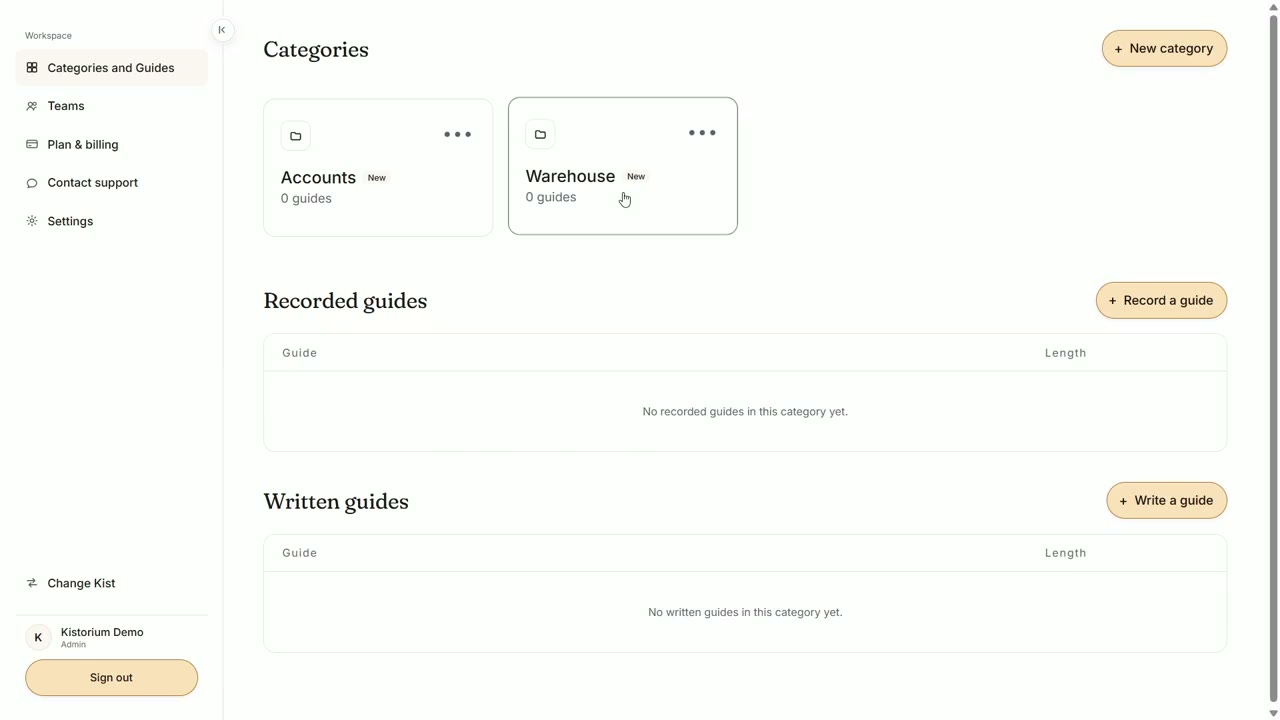
Categories
A group of guides that go together.
Admins create them- Click New category and name it.
- Move a guide with Move to… on its menu.
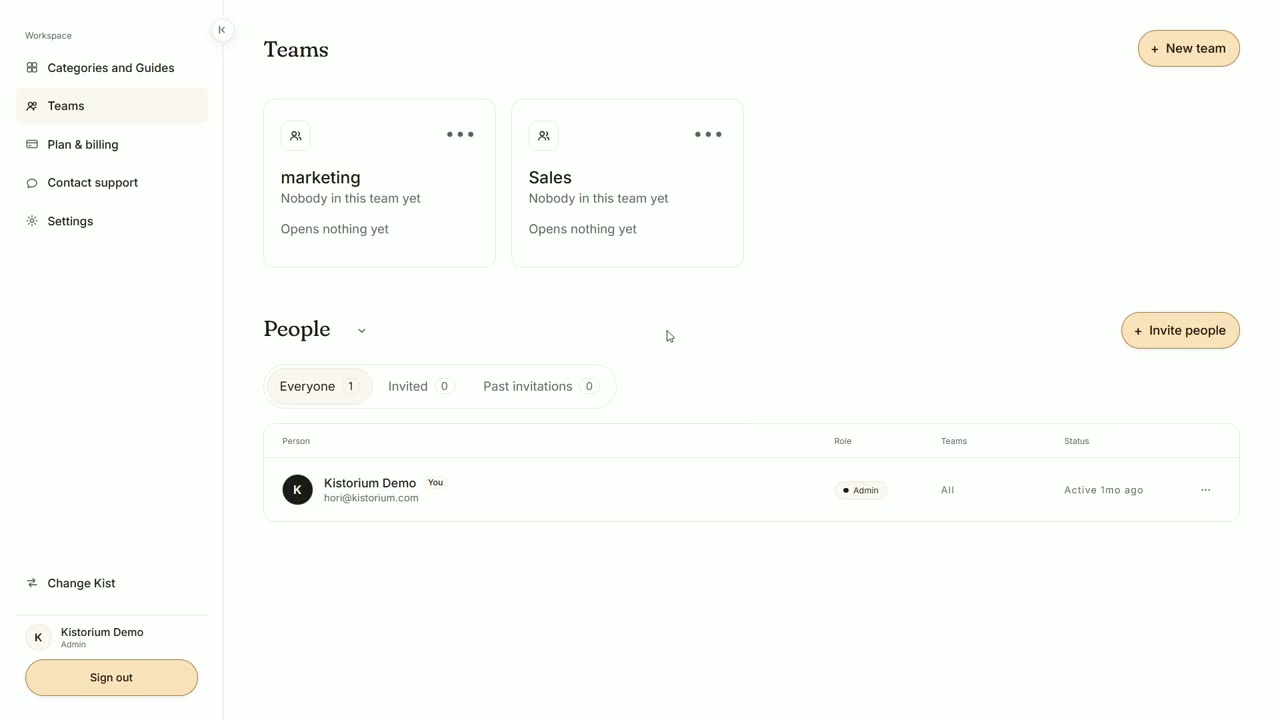
Teams and people
Decide who sees what.
Admins only- Go to Teams and click New team.
- Click Invite people. A Member can read. A Manager can also edit.
- Click Change what it opens and pick its Categories.
Packs and your balance
You only pay when you build a video guide or import a document.
- See what is left under Plan & billing.
- Your first five video guides are free. Packs never expire.
- Editing, sharing and printing never use your balance.
No Windows PC? Write a guide
Type the steps, or import a document.
- Click Write a guide.
- Type the steps, or Import a PDF, Word file or photo.
- Click Generate guide with AI.